Default Trend
A default trend is a pre-configured trend that you can access anytime from a CygNet Studio or CygNet Vision screen in Run mode in the form of a dialog box; it provides a customizable means to chart selected data in a number of useful formats, including line graphs and area graphs.
The default trend is a property of TheFrame/TheView, which means that it does not affect trends that are added to TheView by means of a Trend Tool. You may set up a default trend to display a number of commonly accessed trending items without dependence on a Trend Tool. Another advantage of the default trend is that it does not take up space on TheView. Both trend types use the same underlying ActiveX control, but the default trend is a unique implementation of this ActiveX control.
For more information, see the following subsections:
Configuring the Default Trend
Configuration of a default trend is very similar to that of the Trend Tool. Like the Trend Tool, configuration of the default trend involves adding and configuring groups, y-axes, and series in Edit mode to suit your needs.
To access default trend properties for configuration, open the CygNet Studio screen in Edit mode and right-click on TheView. This opens the TheFrame/TheView Property Sheet. Locate the [DefaultTrend] property and click its Browse button. The Default Trend Properties dialog box opens, enabling you to set up the default trend in the same way as a Trend Tool.
See the following Trend Tool topics for more information:
Once you have configured the default trend in Edit mode, you can use it in Run mode.
Using the Default Trend in Run Mode
Most of the Run mode functionality discussed in Using the Trend Tool in Run Mode is the same as that of the default trend. However, the default trend has some unique features. Once you are in Run mode the default trend can be accessed in numerous ways.
For more information about using the default trend in Run mode, see the following subsections:
- To Open a Blank Default Trend Dialog Box
- To Open a Default Trend for a Selected Point
- To Dynamically Add Points to a Default Trend
- To Dynamically Change the Default Trend Based on the View's Configuration
- To Read To, Write From, or Restore a Trend
To Open a Blank Default Trend Dialog Box
To open a blank Default Trend dialog box, chose one of the following options, and then configure the trend series as described in Using the Trend Tool in Run Mode:
- Right-click anywhere in the CygNet Studio or CygNet Vision screen and select View Trend.
- Click View > View Trend from the CygNet Studio or CygNet Vision menu bar, or click View Trend (
 ) in the CygNet Studio or CygNet Vision standard toolbar.
 - Add a Button Tool to the screen that uses the [ButtonType] property View Default Trend.
To Open a Default Trend for a Selected Point
To open a Default Trend for a point displayed on the screen, right-click the CygNet-aware tool and select Trend > Add to Default Trend.
|
Add to Default Trend |
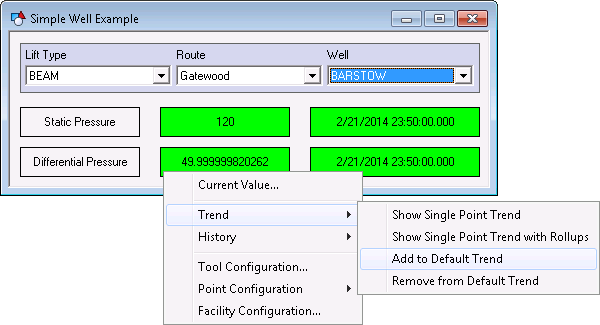
Example
The default trend for the selected point will be displayed as in the following example: Static Pressure for the BARSTOW well. You can configure and manipulate the series and the dialog box as described in Using the Trend Tool in Run Mode.
|
Default Trend |
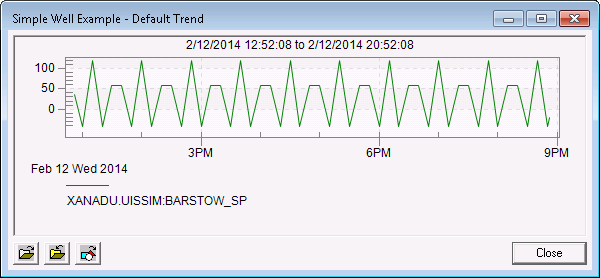
To Dynamically Add Points to a Default Trend
With the default trend open you can select another point on your screen to add a new trend series to the existing default trend:
- Right-click the new point and select Trend > Add to Default Trend.
Example
A second trend series will be displayed as in the following example: Differential Pressure for the BARSTOW well. You can configure and manipulate the series and the dialog box as described in Using the Trend Tool in Run Mode. Repeat for each point you want to see trended.
|
Second Trend Series |
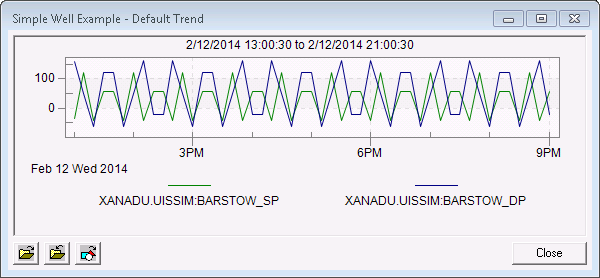
To Dynamically Change the Default Trend Based on the View's Configuration
When adding a point tag to the default trend from a CygNet-aware tool, the configured portion of the tag is used instead of the fully resolved tag, except when a reference facility is being used. By only reporting the configured portion of the tag for the object, the default trend is able to pick up on any changes to the view's tag configuration.
If a CygNet-aware tool is only configured with a UDC, it will get the ambient site, service, and facility from the view’s configuration. If the view’s configuration is changed (from a Facility Navigation Bar or other means), then the object will dynamically update to the new configuration. The same is true for the default trend.
Reference Facilities
Tools are configured to use reference facilities if they have the ReferenceFacility property configured. When the view’s ambient facility is set, the reference facility is referenced via the configuration. So if you have an object that is configured with ReferenceFacility = "FacilityAttr3", and the view’s facility is "WELL1", the object’s facility is looked up in WELL1’s FacilityAttr3. This is commonly used to associate a well with a tank, for example. See Configuring a Reference Facility for more information.
Example
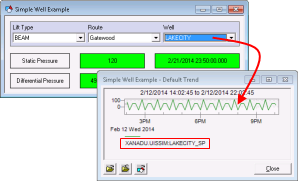
As the facility ID in Facility Navigation Bar changes, the default trend will automatically update to show historical values for the selected facility (first BARSTOW, then LAKECITY) using the same UDC (SP).
|
Updated Default Trend |
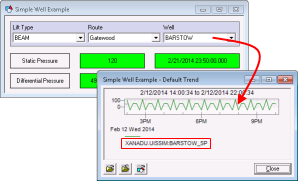
To Read To, Write From, or Restore a Trend
The Default Trend dialog box provides other button options for opening a previously saved trend, writing a trend to a file, and restoring the dialog box to empty:
- Click Read Trend From File (
 ) to open a previously saved copy of a default trend. When you open the previously saved copy, all its settings are reproduced on the default trend. To revert to the default trend you were using before opening the previously saved trend, click
  .
.
- Click Write Trend To File (
 ) to save a copy of the currently displayed default trend. Current settings are saved to a file regardless of whether they were made in Edit mode or Run mode.
- Click Restore Default Trend () to restore the currently displayed default trend to its Edit mode settings.


